Practical AI · 3-minute read
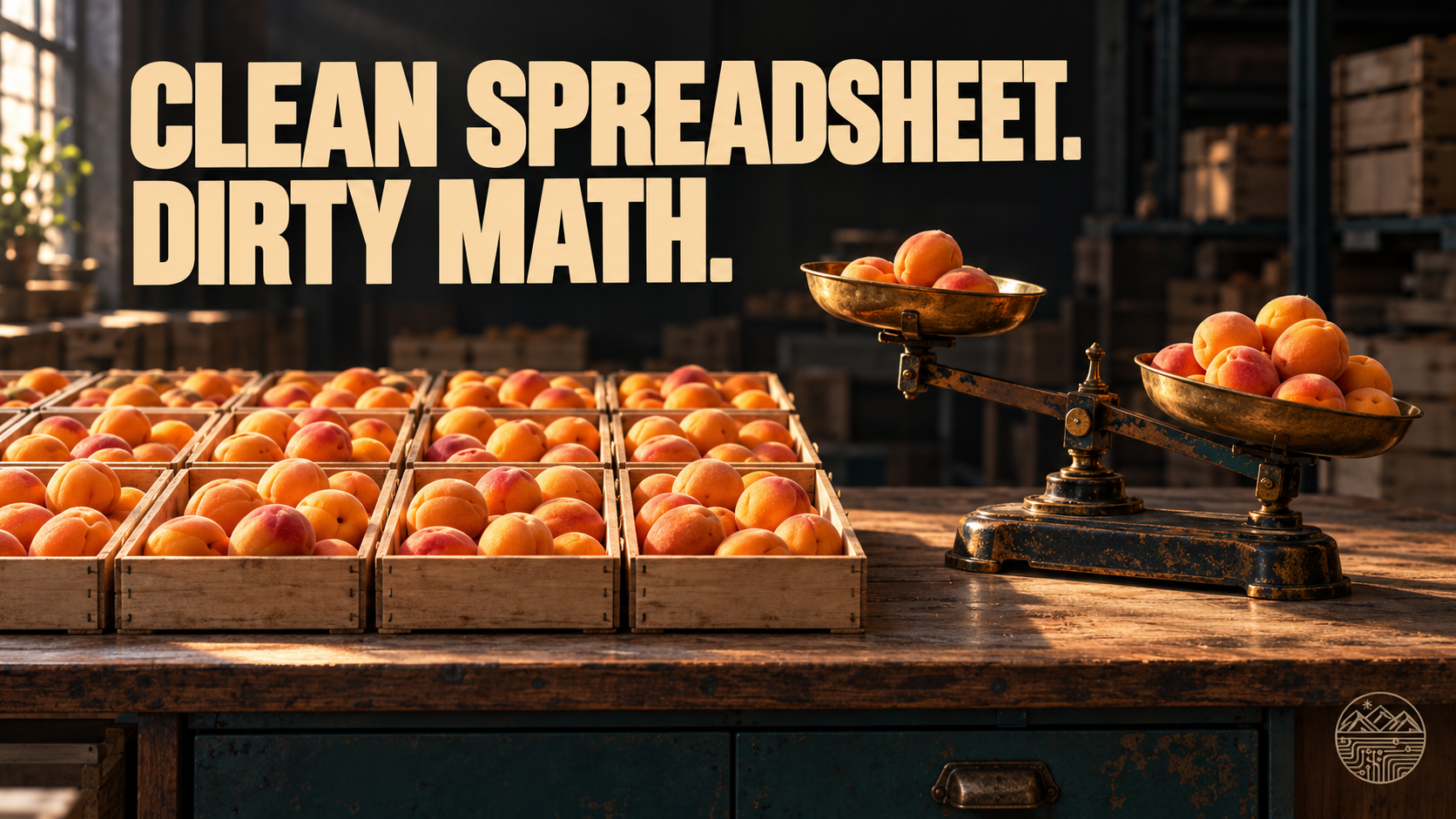
The spreadsheet has matching fonts, sensible colors and a total that looks extremely official. Unfortunately, the formula is answering a different question. Presentation has once again arrived before supervision.
AI can help write or explain spreadsheet formulas. Before using one, define what the result is supposed to mean. ‘Average cost’ sounds simple until two people divide by different things.
Use a tiny example you can solve yourself
At Mesa Apricot Packing, a fictional agricultural business, the office wants the combined packing cost per box across two batches. These figures are invented:
One: $600; 100; $6
Two: $900; 300; $3
A simple average of $6 and $3 gives $4.50. The combined cost per box is $1,500 divided by 400 boxes, or $3.75. Both calculations run. Only one answers the stated question. The larger batch needs its proper weight in the result.
If costs are in B2:B3 and box counts in C2:C3, =SUM(B2:B3)/SUM(C2:C3) produces $3.75 for this tiny test. It is an illustration to verify, not a formula to paste blindly into a different workbook.
Ask for the logic and the tests
I need [metric], defined as [numerator divided by denominator]. My columns and units are [details], and the rows to include are [rules]. Propose a formula for [spreadsheet app]. Explain it in plain language. Identify assumptions and provide small test cases with expected results, including zero, missing data and excluded rows. Do not silently treat missing values as zero. Flag ambiguity before choosing a formula.
Then calculate the test answers independently. An explanation generated by the same AI can repeat the formula’s mistake. Use a calculator and the actual business definition, or have a colleague check the logic.
Check the awkward rows
Try a batch with zero boxes, an unfinished cost entry and a row that should be excluded. Decide what each should do before changing the formula. A blank cost might mean ‘not entered yet.’ Converting it to zero can make an incomplete batch look delightfully cheap.
Confirm that the real workbook uses consistent units and includes the intended rows. Inspect copied formulas, filters and totals. Microsoft’s Evaluate Formula feature can show how supported Excel versions calculate a formula step by step; it cannot determine whether your metric is the right one. [1]
Work on a copy with fictional or approved data. The person responsible for the report should approve the definition and test results before the formula informs a decision. Check whether excluded sites, shifts or incomplete records make the comparison misleading.
Your turn: Which number in your spreadsheet would benefit from someone asking, ‘What exactly are we dividing by?’
Source [1]: Microsoft Support: Evaluate a nested formula one step at a time. Supports the Excel auditing feature. The packing example, arithmetic and verification method are original editorial material.